Tip
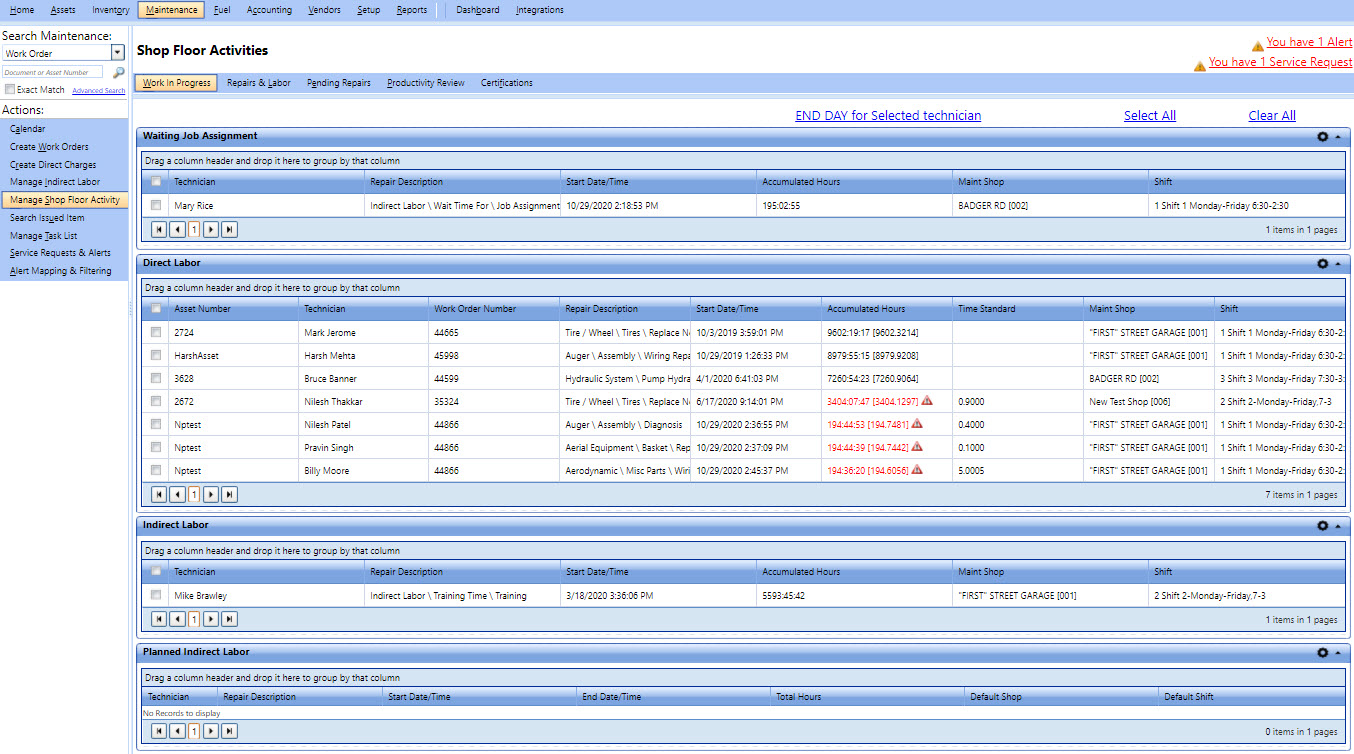
TipThe Work In Progress tab lets you view the activities performed by the technicians on the shop floor. The Work In Progress tab is divided into the following sections:
· Waiting Job Assignment - Displays the technicians who have logged on to the Technician Workstation (TWS) portal but have not started working on a repair
· Direct Labor - Displays the technicians who have started working on a repair on the Technician Workstation (TWS) portal
· Indirect labor - Displays the technicians who have started an indirect labor activity on the Technician Workstation (TWS) portal
· Planned Indirect labor - Displays the planned indirect labor that are in progress or for next 14 days
Tip
To view the Work In Progress page, click the Work In Progress link.
On the Work In Progress tab, you can end the day of the technicians who have logged on to the Technician Workstation (TWS) portal.
1. In the Actions section of the Maintenance module, click Manage Shop Floor Activity.
The Work In Progress page opens.
2. Select the technicians you want to log out.
|
Note: · You can click Select All to select all the technicians displayed in the Work In Progress tab. You can clear the check box for any technicians you do not wish to log out. · You can click Clear All to clear all the selected technicians. |
3. Click the END DAY for Selected technician link.
The selected technicians are logged off from the Technician Workstation (TWS) portal.